Setup
Bazzite OS
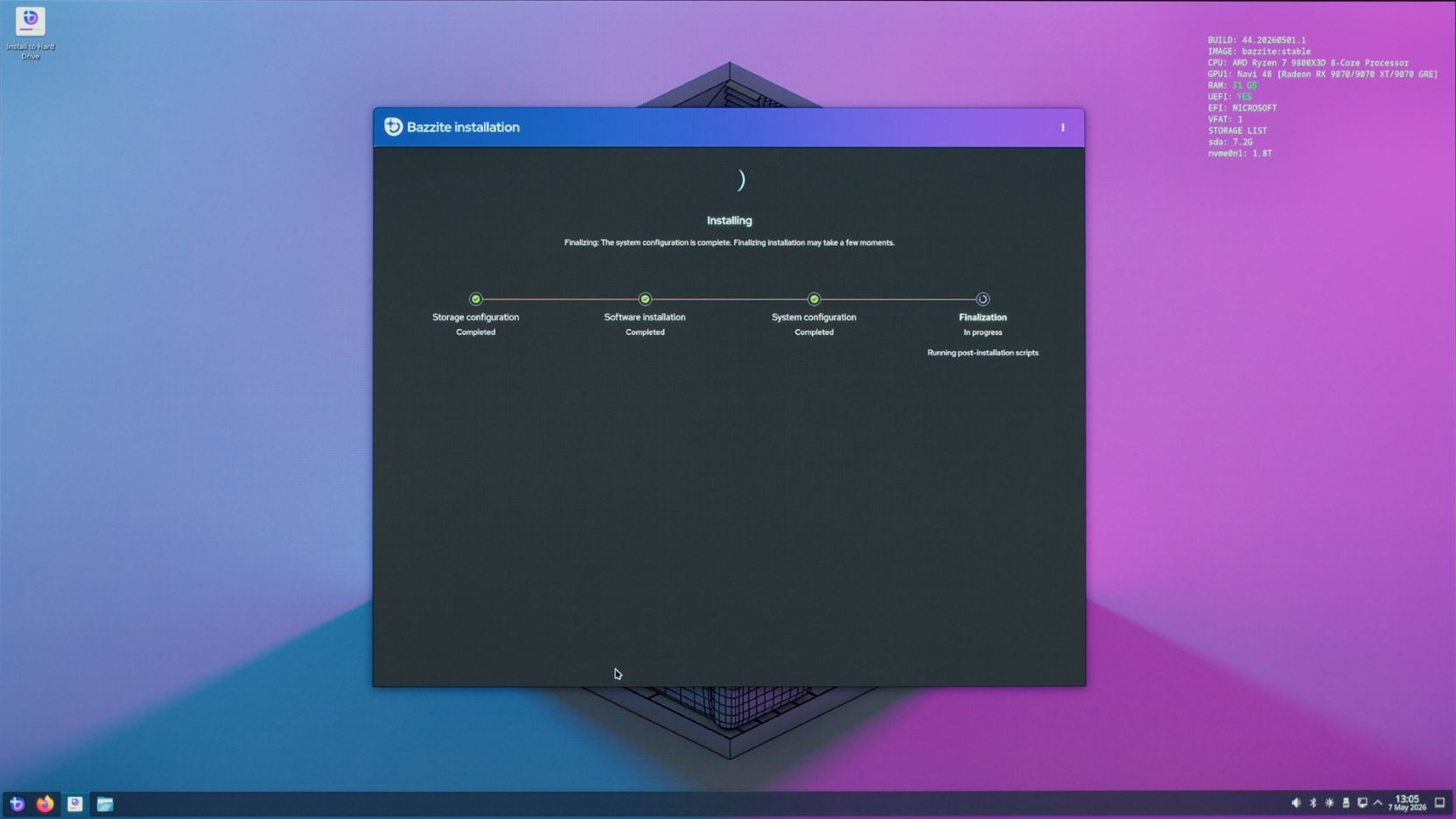
I chose Bazzite because it’s the closest Linux distro to SteamOS on desktop (currently).
It’s an atomic distro, which means it’s as idiot-proof as Linux gets.
It’s also extremely simple to install:
- Download Ventoy and install it on your USB flash drive.
- Download the Bazzite ISO.
- Drag and drop the Bazzite ISO onto the USB partition created by Ventoy.
- Choose the USB drive in the BIOS boot menu.
- Continue with the installation steps in the Bazzite Installation Guide.
Steam
Comes pre-installed, ready to install and play games.
Bazzite can be setup to boot directly into the controller friendly Gaming Mode, by choosing “Home Theater PC” or “Handhelds” when downloading the install image.
Steam will automagically install everything needed to run games on Linux out of the box.
Proton Plus
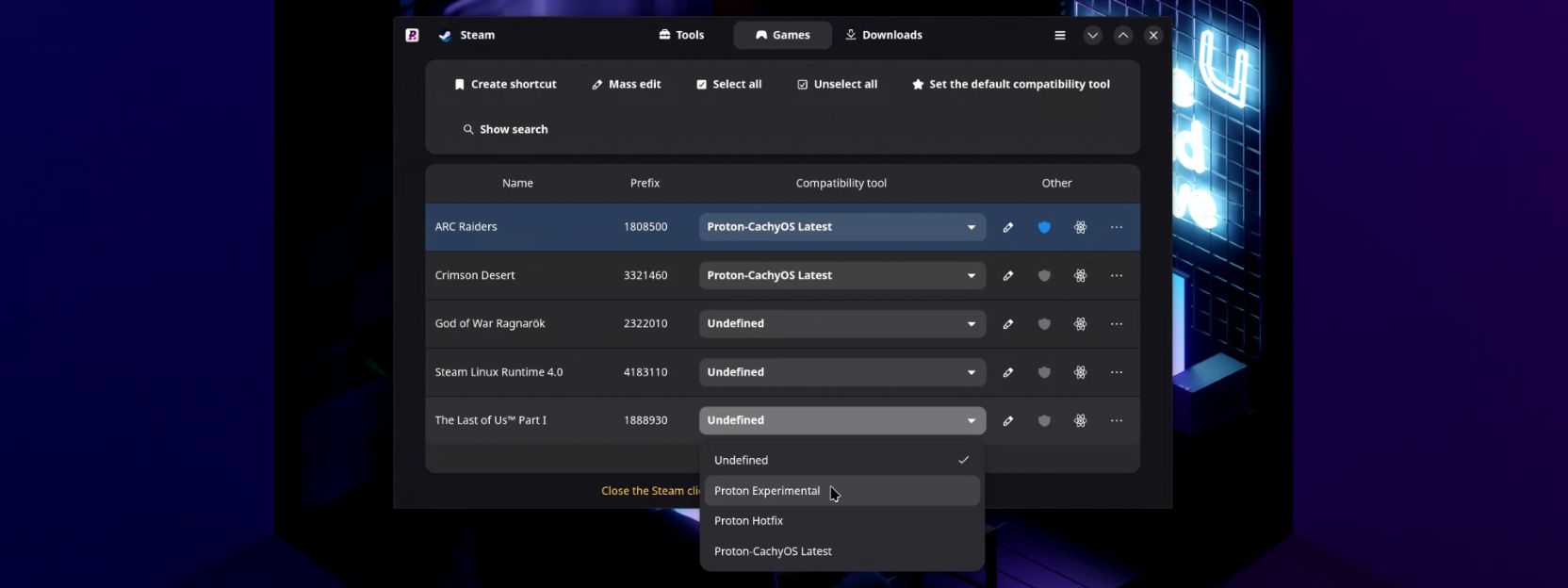
Proton Plus comes pre-installed with Bazzite and it allows you to customize the version of Proton used by your installed games, beyond what Steam allows by default.
I recommend selecting Proton-CachyOS Latest for most games.
Certain launch options such as PROTON_ENABLE_HDR=1 or PROTON_FSR4_UPGRADE=1 can be used to enable game features when used with the correct Proton version
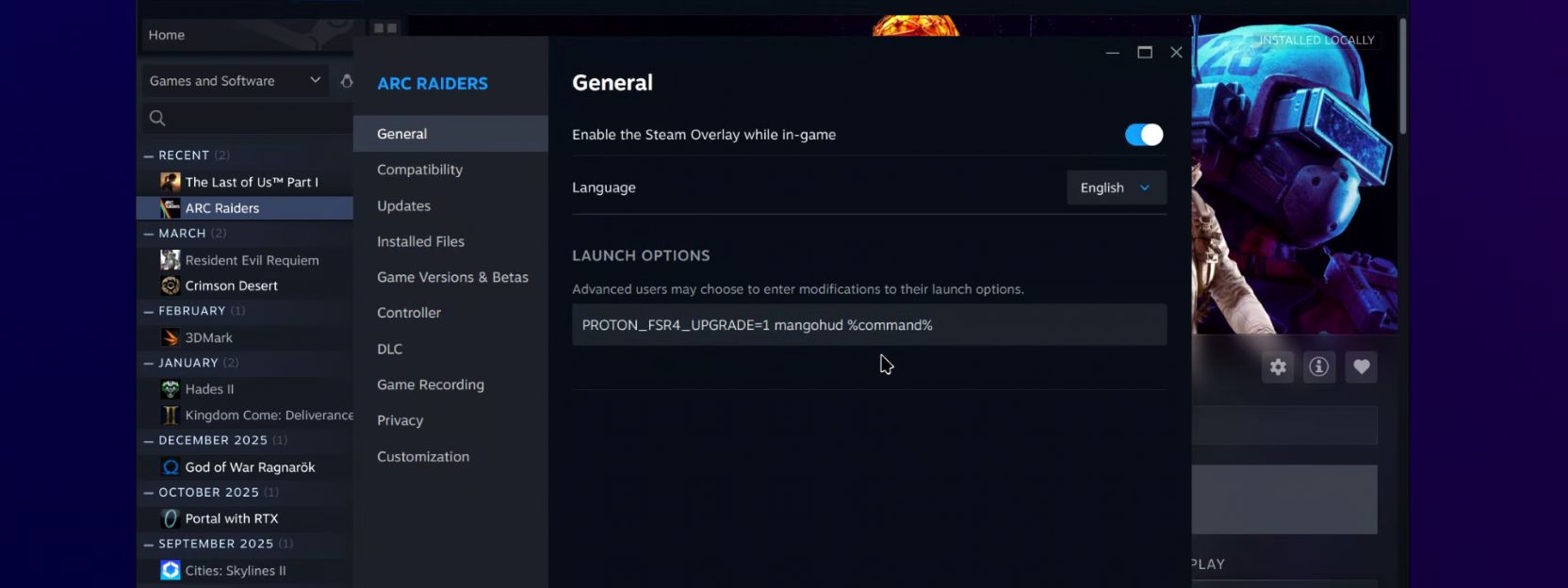
You can consult ProtonDB for recommendations on which Proton version to use for specific games, as well as recommended launch options, tested by the community.
Heroic Launcher
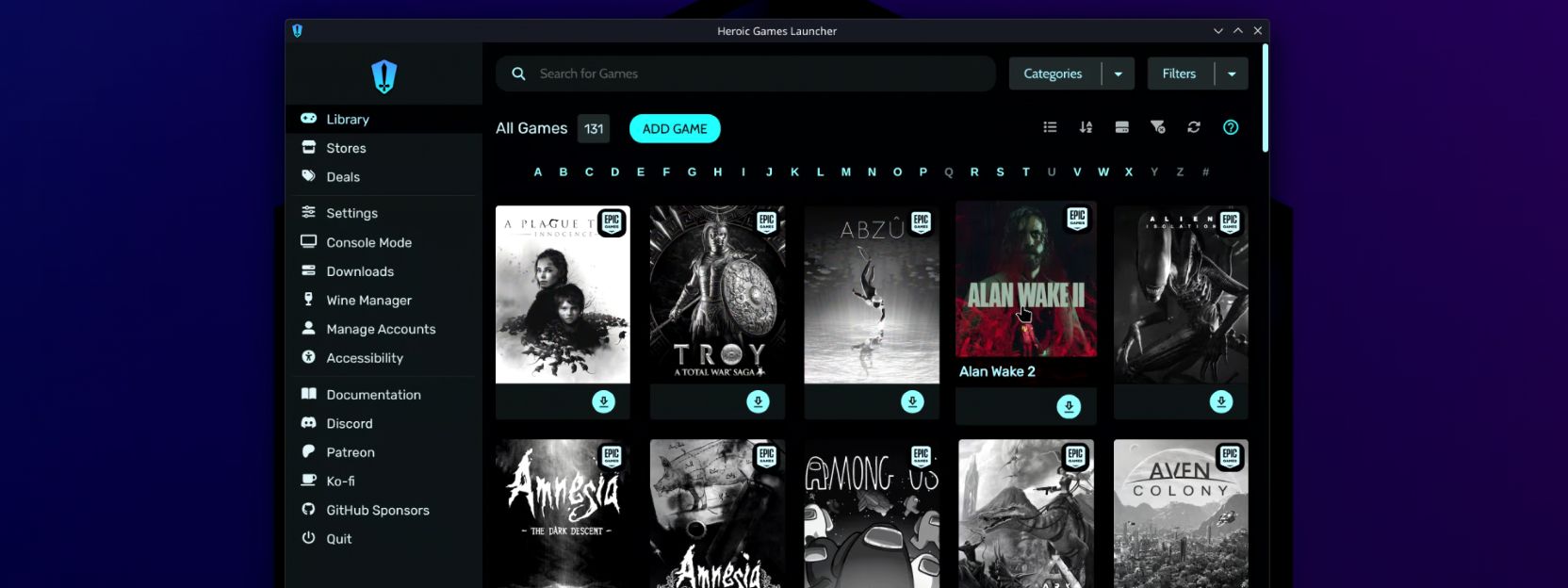
Heroic Games Launcher comes pre-installed with Bazzite and it allows you to install and manage games from other platforms such as Epic, GOG and Amazon Prime Games.
Fan Control
Use CoolerControl for managing fan speeds and for temperature monitoring.
Think of CoolerControl as a mix of FanControl and HWiNFO on Windows.
Troubleshooting
The Gigabyte B650I AORUS Ultra motherboard I used for my build needed a specific workaround for getting fan control to work properly. Please check out how I managed to get around these limitations here.
GPU Tuning
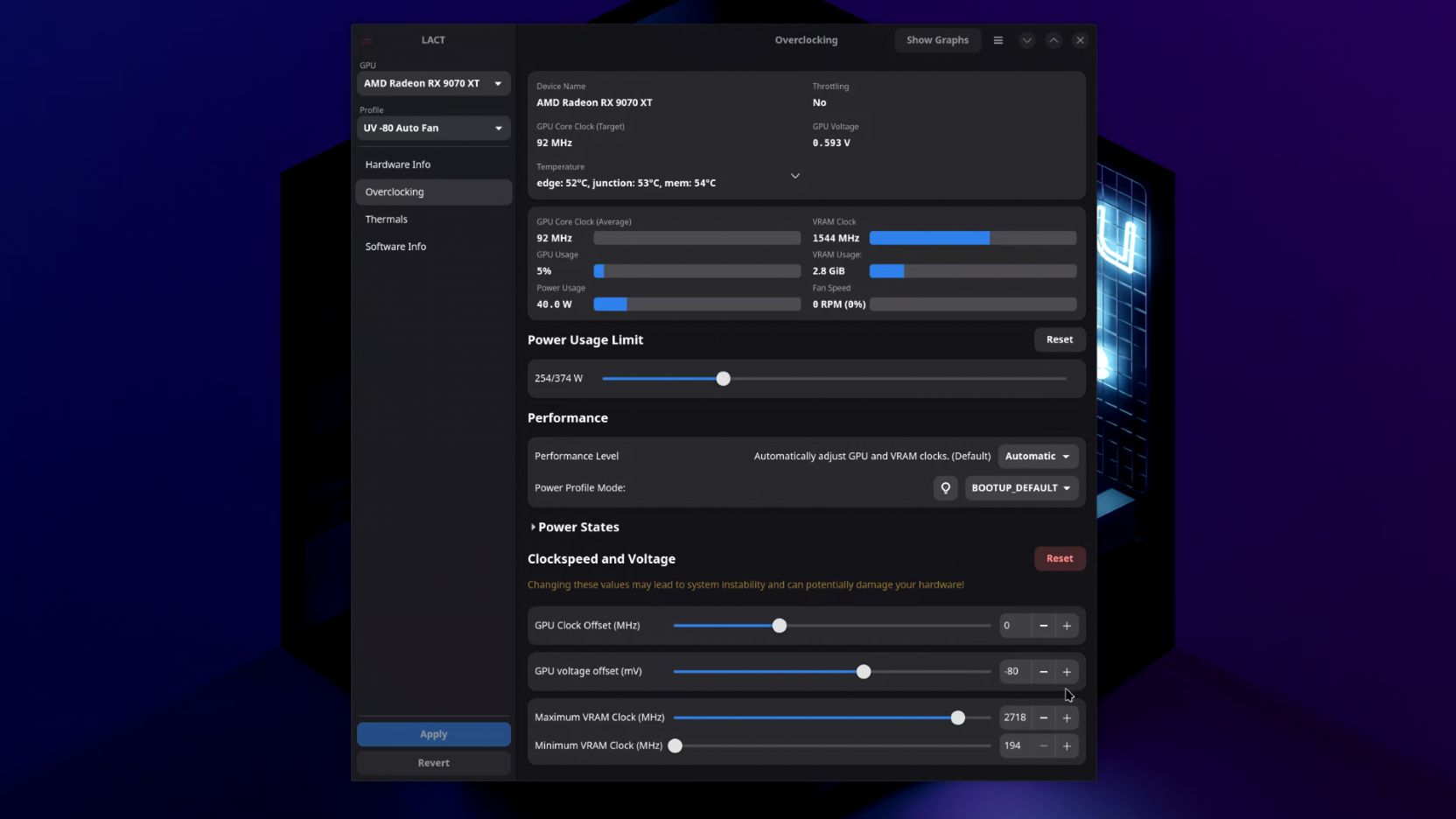
LACT - LACT is the Linux “MSI Afterburner”.
Essential for undervolting/overclocking and managing GPU fan speeds. It also supports per process profiles, allowing you to use different settings on a per-game basis.
Overlay
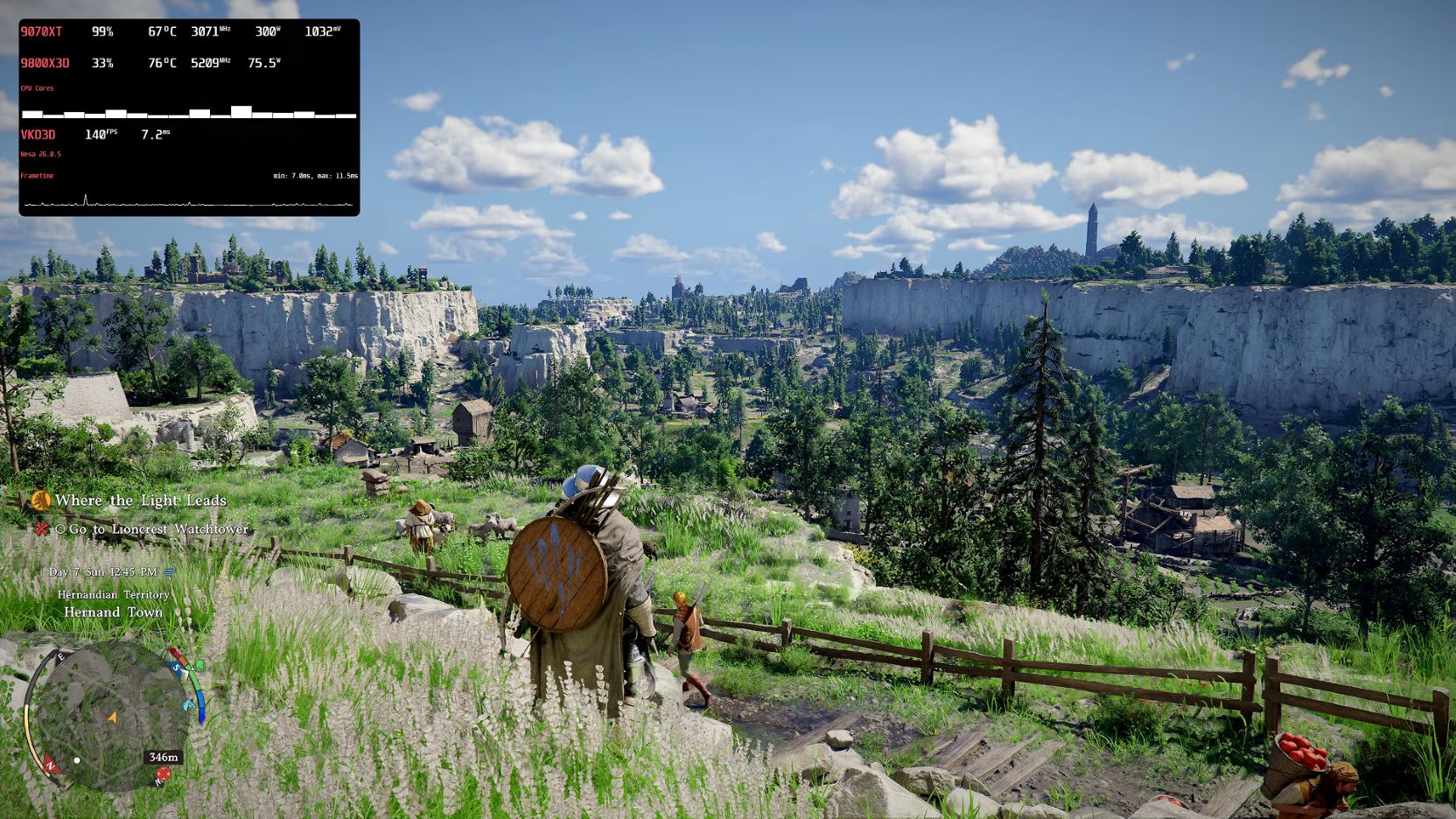
MangoHud is the Linux “RTSS”.
It features a straightforward configuration as well as robust performance logging, making it essential for assessing performance (and thermals) on a Linux gaming build.
Configuration
The customized configuration file I used for my testing is available for download on my Patreon.
MangoHud needs to be specifically called on a process by process basis in order for it to work.
Add mangohud %command% to each game’s launch options, and setup a hotkey in the configuration file for toggling the overlay on and off.
Flightless Something is an online tool for uploading and analyzing logs recorded with MangoHud.
You can find all the logs I recorded for this build here.
Anti-cheat
Some games with anti-cheat work, but those with kernel-level anti-cheat systems (e.g. Battlefield 6) do not and likely never will unless the developers will actively disable those systems or replace them.
You can use this filter on ProtonDB to check anti-cheat games.