Setup
Troubleshooting
No signal
This happens because the 5070 is a PCIe Gen5 GPU, while the Midori 4.0 riser cable only supports Gen4 speeds.
We need to manually set the PCIe X16 link speed to Gen4 speeds in motherboard BIOS.
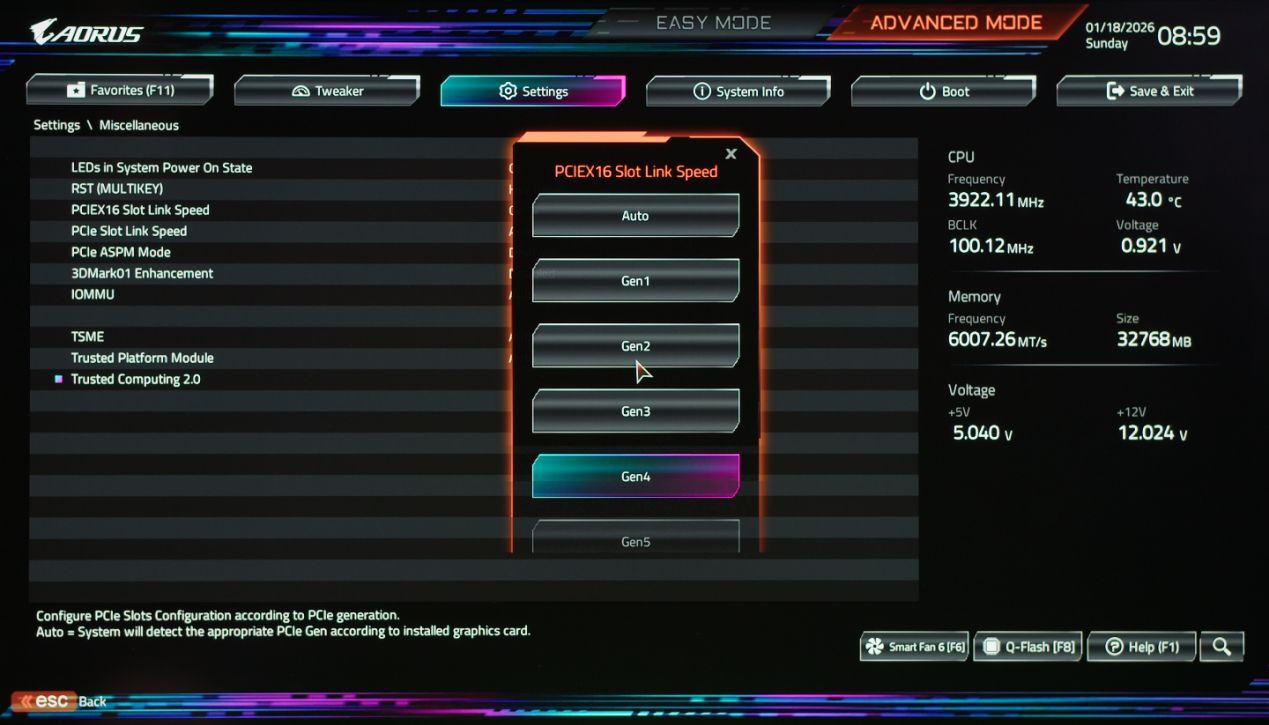
Steps
- Connect your display to the HDMI / DP port on the motherboard.
- Power on the Midori build.
- Enter BIOS.
- Find the PCIe x16 link speed setting.
- Set the speed to Gen4.
- Save and exit the BIOS.
- Connect your display to the desired port on the GPU.
Fan Control
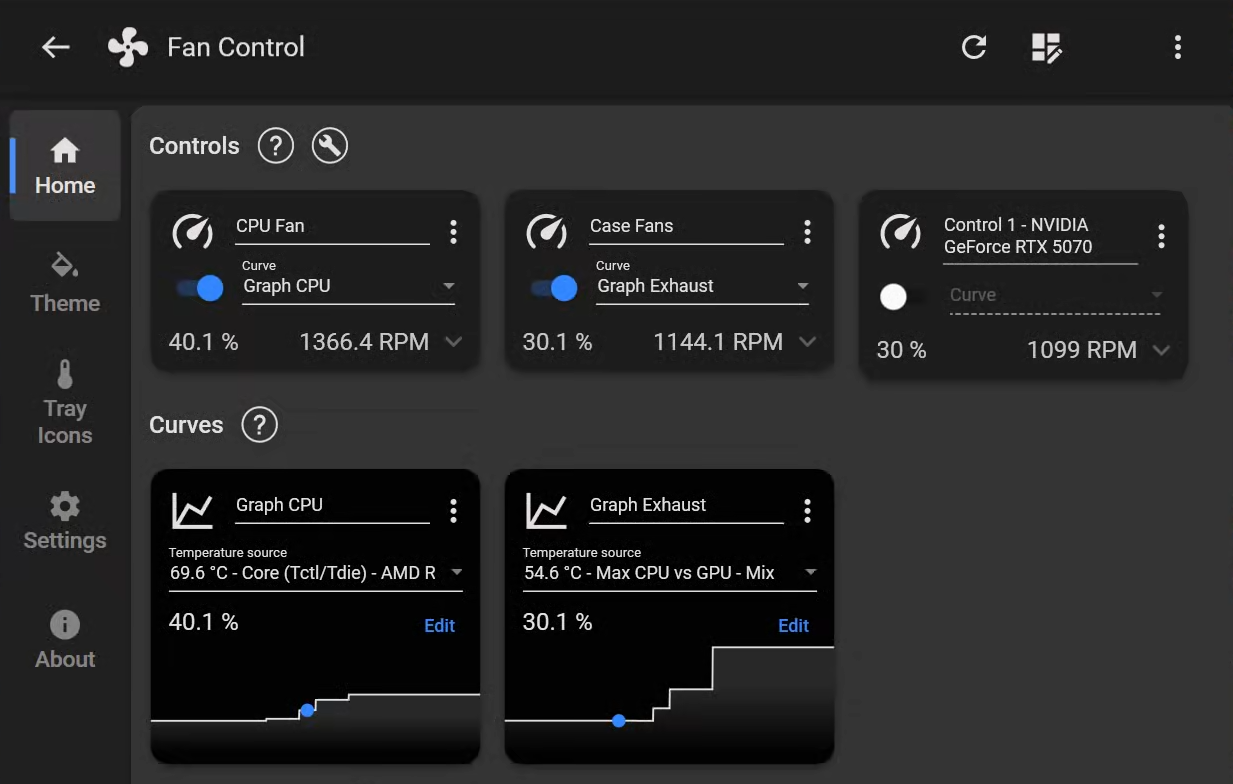
I use FanControl for managing speeds for the CPU and exhaust fans.
For the GPU fans I generally leave them on Auto (when not doing thermal testing).
The config file for this particular build is available for download on my Patreon, but you can follow the steps below for setting up your own config.
Configuration
Because the exhaust fans will be doing the heavy lifting in this build, I want them to ramp up based on whichever component is running hottest.
Steps
- set up a
Mixcustom sensor with the Function set toMax. - Create an
Offsetcustom sensor with the temp. source set to theCPU Core (Tctl/Tdie)sensor and an offset of-15. This is done in order to “align” the generally higher CPU temperature with the lower GPU temperature. - In the
Mixcustom sensor, add in theOffsetsensor and theGPUcore sensor. - Create two
Graphtype curves, one for the CPU fan and one for the Exhaust fans. - Set the
CPU graphfan curve temp. source to theCPU Core (Tctl/Tdie)sensor - Set the
Exhaust fancurve temp. source to theMixcustom sensor. - Set the CPU fan control card to the
CPU graphcurve - Set the Exhaust fan control card to the
Exhaust fancurve
Customize to preference. Here are the minimum and maximum values I’ve used for setting up this particular T1 build:
- CPU fan:
32%up to 65°C, maxing out at55%above 80°C. - Exhaust fans:
30%up to 60°C, maxing out at100%above 83°C.
Tuning Apps
MSI Afterburner - The industry standard overclocking / undervolting software. Cannot live without it. Developed by Unwinder.
Riva Tuner Statistics Server (RTSS) - Bundled with Afterburner. My go-to tool for setting up frame rate limits and for in-game overlays.
Overlay
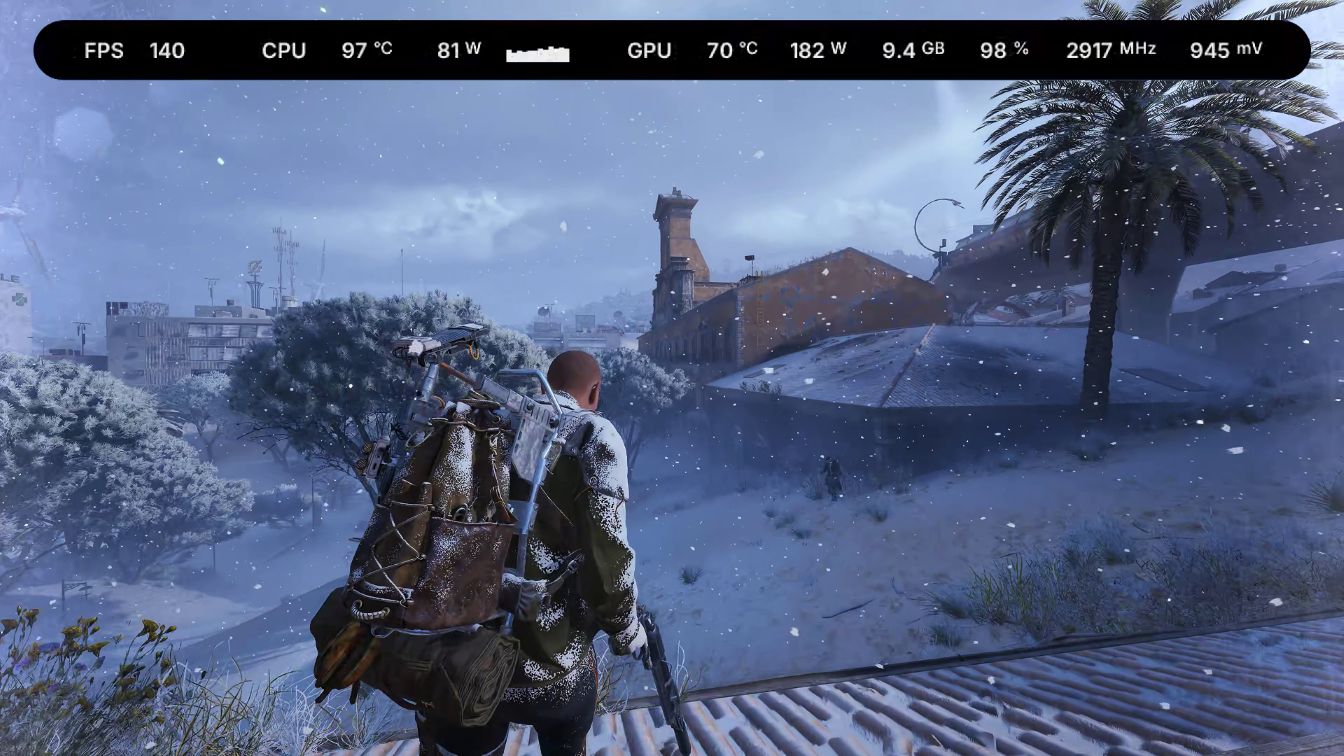
This RTSS overlay is available exclusively on my Patreon.
It supports most of the popular screen resolutions (including ultrawide), and multiple CPU thread counts.
It uses RTSS sensors, so you don’t have to run any other apps in the background.